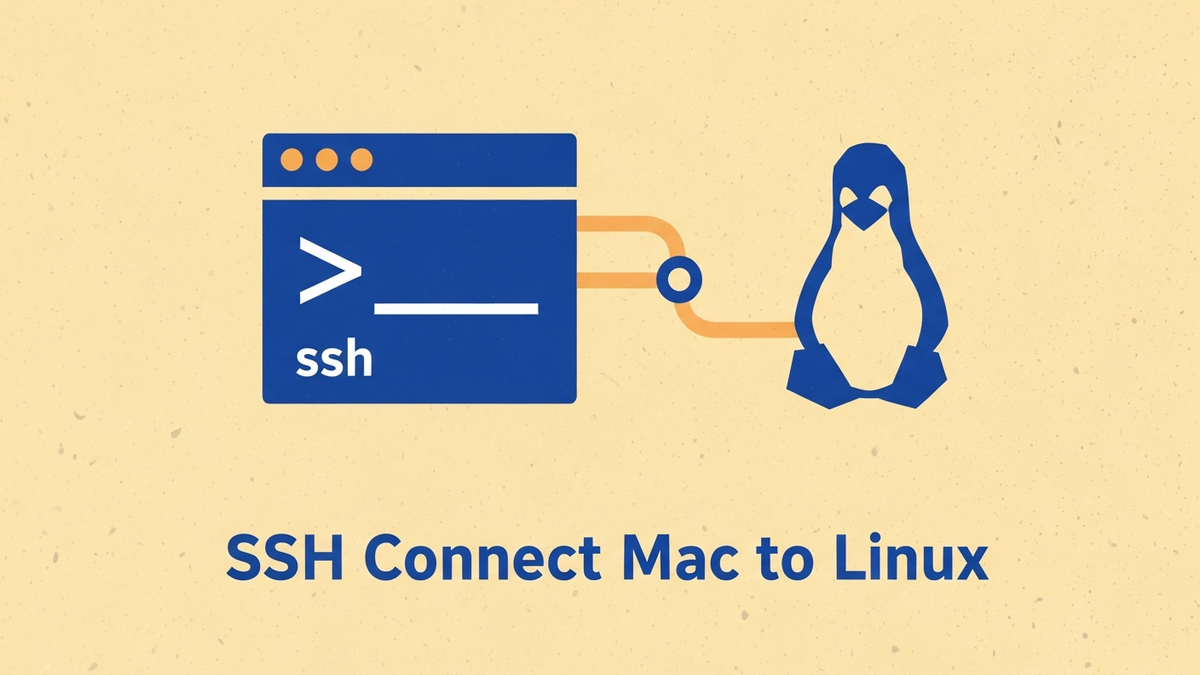
You have a Linux server somewhere (a VPS, a remote workstation, or a Raspberry Pi on your home network) and you want to manage it from your Mac. This DevAnswers fix walks through connecting via SSH from the built-in macOS Terminal, setting up key-based authentication, saving connections in ~/.ssh/config, and storing the key passphrase in your Mac’s Keychain so you only type it once.
Prerequisites
- A Mac running macOS Ventura 13 or later. The OpenSSH client ships with macOS by default, so you do not need to install anything.
- Network reachability to the remote Linux host. You will need its IP address or DNS hostname plus the SSH port (default
22). - A username on the remote host and either a password or an SSH private key.
- Comfort running commands at a shell prompt.
Open the Terminal on macOS
Terminal is the command-line interface to macOS. The fastest way to open it is Spotlight: press Command + Space, type Terminal, and press Return. You can also find it at /Applications/Utilities/Terminal.app in Finder, or in Launchpad under Other.
The default shell on macOS since Catalina is zsh. Every command in this guide works the same in zsh and bash.
Connect with the ssh Command
The basic form of the OpenSSH client invocation logs you into a remote host as a named user:
Replace devans with your remote username and devanswers.test with the server’s IP or hostname. The first time you connect, OpenSSH prints the remote host’s SHA256 fingerprint and asks you to confirm.
ssh-keygen -lf /etc/ssh/ssh_host_ed25519_key.pub on the server via the provider’s web console. Blanket-accepting the prompt defeats host-key verification and can mask a man-in-the-middle attack as a normal first connection. Once the fingerprint matches, type yes to accept it and add the host to ~/.ssh/known_hosts.
If your server listens on a non-default port, pass it with -p:
ssh -p 2222 [email protected]To use a specific private key file, point at it with -i:
ssh -i ~/.ssh/id_ed25519 [email protected]Set Up SSH Key Authentication
Passwords work, but a key is faster, more secure, and avoids retyping. Generate a modern Ed25519 keypair if you do not already have one:
ssh-keygen -t ed25519 -C "[email protected]"ssh-keygen prompts for a file location (accept the default ~/.ssh/id_ed25519) and a passphrase. Use a passphrase even on a single-user Mac, then store it in Keychain as described below.
Default macOS does not ship ssh-copy-id, so the most reliable one-liner from a fresh Mac pipes the public key through ssh and appends it to the server’s ~/.ssh/authorized_keys file (creating the directory and fixing permissions if needed):
cat ~/.ssh/id_ed25519.pub | ssh [email protected] "mkdir -p ~/.ssh && chmod 700 ~/.ssh && cat >> ~/.ssh/authorized_keys && chmod 600 ~/.ssh/authorized_keys"If you would rather use the shorter ssh-copy-id script, install it via Homebrew first (brew install ssh-copy-id) and then run:
ssh-copy-id [email protected]From now on, ssh [email protected] authenticates with the key instead of asking for a password.
Save Connections + Store Passphrase in macOS Keychain
Once you have more than one server, typing the full user@host and port every time gets tedious. The OpenSSH client reads ~/.ssh/config for per-host preferences. A Host block restricts the directives below it to hosts matching its pattern, so you can define an alias and connect with one short word.
Open or create the file with nano ~/.ssh/config and add a block per host. The macOS-specific UseKeychain and AddKeysToAgent directives integrate the key with your Login Keychain so the passphrase is unlocked automatically:
Host devanswers
    HostName devanswers.test
    User devans
    Port 22
    IdentityFile ~/.ssh/id_ed25519
    UseKeychain yes
    AddKeysToAgent yes
Save and exit (press CTRL + X, press Y, then press ENTER)
Now ssh devanswers connects with the configured hostname, user, port, and key. AddKeysToAgent yes loads the key into the running ssh-agent on first use; UseKeychain yes reads the passphrase from your macOS Keychain so you are not prompted again after the first unlock.
If you want to add the key to Keychain explicitly without waiting for first use, run:
ssh-add --apple-use-keychain ~/.ssh/id_ed25519Apple introduced --apple-use-keychain in macOS 12 Monterey to replace the older -K flag. If you find ssh-add -K in an older guide, the modern equivalent is --apple-use-keychain.
Troubleshoot Common SSH Errors
- Permission denied (publickey). The server rejected your key. Confirm the public key in
~/.ssh/id_ed25519.pubon your Mac matches an entry in~/.ssh/authorized_keyson the server, and thatauthorized_keyshas mode600and is owned by the remote user. - Host key verification failed. The server’s host key changed since the entry in
~/.ssh/known_hosts. Most often this means the server was rebuilt or its OS was reinstalled. Remove the stale entry withssh-keygen -R devanswers.testfor a default-port host, orssh-keygen -R '[devanswers.test]:2222'(with quoting around the brackets) for a host on a custom port, then reconnect and verify the new fingerprint before accepting it. - Connection timed out. Nothing accepted your connection on the requested port. Verify the host is up, the SSH service is listening on the port you used, and no firewall (local, cloud security group, ISP) is blocking outbound traffic.
- Could not resolve hostname. DNS could not look up the name. Double-check the spelling, or connect by IP address to confirm whether the issue is with DNS or with the host itself.
Next Steps
For a broader overview that covers SSH from Linux, macOS, and Windows in one place, see our guide to connecting to a Linux server via SSH. If you also work from a Windows machine and want the PuTTY-side equivalent of the ~/.ssh/config Host alias workflow, see PuTTY SSH key authentication. And if a connection from your Mac is hanging or dropping, the cross-platform diagnosis in PuTTY network errors covers the same root causes (firewall, idle timeout, server overload) that affect macOS Terminal sessions too.



That’s great mate, but what about connecting to the box via SSH and a graphical interface like WSFTP?