You click Update Now, and WordPress answers with one flat sentence: Another update is currently in progress. Usually nothing is, and what you are looking at is a marker WordPress wrote to your database when a core update was interrupted. It stops counting after fifteen minutes, and WordPress clears it the next time you try.
The Quick Fix
There are two routes, and the first one is to do nothing.
Wait fifteen minutes, reload Dashboard › Updates, and try again. WordPress throws an abandoned marker away itself the moment you retry more than fifteen minutes later, so for most people that is the entire fix.
If you would rather not wait, you can delete the marker yourself. It is a single row in your database, an option named core_updater.lock. There is a route below for people working in a hosting control panel, and one for people with SSH.
If you have already waited well past fifteen minutes and nothing has changed, the ordinary fix is not going to help you. Two specific faults cause that, and both have their own sections below: a lock whose timestamp is dated in the future, which will not clear until the clock catches up to it, and an options table that cannot accept the lock row at all.
What WordPress Is Actually Telling You
The message comes from one place in WordPress. The Core_Upgrader class defines it in its upgrade_strings() method, and that class only ever runs a WordPress core update. So this error is always about updating WordPress itself, whatever you happened to be clicking when it appeared.
Before it downloads anything, the core updater takes a lock. This is from wp-admin/includes/class-core-upgrader.php in WordPress core, shown here to explain the behaviour. It is not a file you should edit:
$lock = WP_Upgrader::create_lock( 'core_updater', 15 * MINUTE_IN_SECONDS );
if ( ! $lock ) {
    return new WP_Error( 'locked', $this->strings['locked'] );
}
That lock is nothing exotic. It is one row in your options table, named core_updater.lock, holding the Unix timestamp of the moment the update began. When the update finishes, WordPress deletes the row again.
The trouble starts when the update never finishes. A PHP timeout, an exhausted memory limit, a dropped connection or a closed browser tab all leave that row behind with nothing to remove it. The next time you try, WordPress finds a lock less than fifteen minutes old and refuses.
The fifteen minutes is worth pinning down, because you will find both fifteen minutes and one hour quoted online and both come from the same function. create_lock() documents its own default as one hour, but the core updater passes fifteen minutes explicitly, as the snippet above shows. For a WordPress core update, it is fifteen minutes.
What the Lock Blocks, and What It Does Not
A lot of advice describes this row as freezing your site, or locking your database. It does neither. WordPress checks it in exactly one place, and everything else carries on as normal.
| Action | Blocked? | Why |
|---|---|---|
| WordPress core update | Yes | The only thing that checks the lock |
| Plugin update | No | A different upgrader, no lock |
| Theme install or update | No | A different upgrader, no lock |
| Background core auto-update | Yes | It runs a core update too |
| Background plugin or theme auto-update | No | Same upgraders, same answer |
| Editing posts and settings | No | The database stays writable |
The plugin and theme rows are the ones people get wrong. Neither the plugin upgrader nor the theme upgrader calls create_lock() at all, so a stuck core lock has no effect on them. If your plugin updates are failing at the same time, that is a separate fault with its own causes, covered in some plugins have failed to update.
Background automatic updates are the one row worth unpacking, because two locks are involved. WordPress wraps the whole background run in a second lock called auto_updater.lock, which takes the one hour default, and a background core update then goes through the same core_updater lock as the button in your dashboard. That is why a stuck core lock stops them too. If you are hunting a row in the database and the name does not match, check which of the two you have found.
Find and Clear the Lock Without SSH
Plenty of WordPress hosting gives you no terminal at all, and you do not need one for this. Almost all of it happens in your host’s database tool, usually phpMyAdmin or Adminer, opened from your hosting control panel. The one step outside it is the first one, where you check your table prefix in wp-config.php.
Check your table prefix first
Nearly every guide tells you to open wp_options. That is only the right table name if your site uses the default prefix. Open wp-config.php in your host’s file manager and look for this line:
$table_prefix = 'wp_';Whatever is in those quotes is your prefix. If it reads xyz_, then your options table is xyz_options and every instruction below applies to that name instead. The SQL in the rest of this article is written for the default wp_, so substitute your own prefix wherever you see wp_options.
Search the options table
Open phpMyAdmin, select your site’s database, click the options table, then open the Search tab. Put core_updater.lock in the option_name field and run the search.
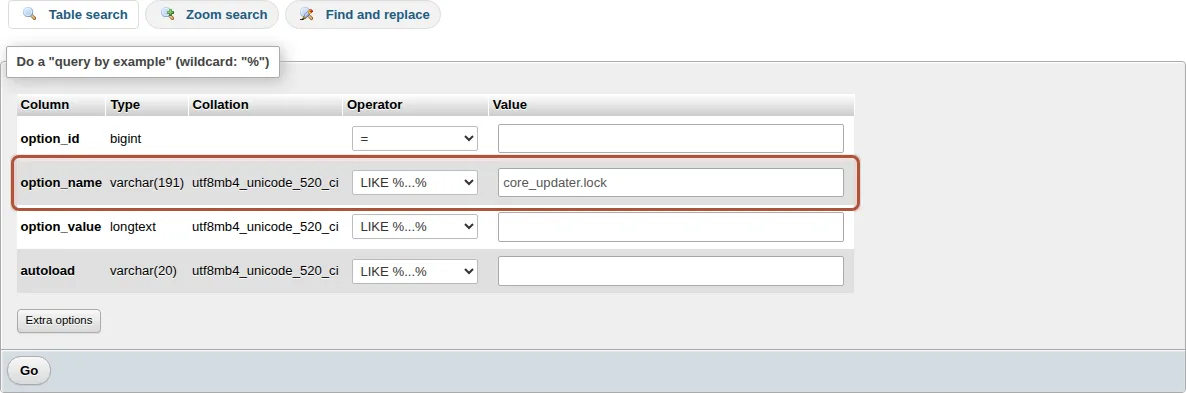
option_name row on the Search tab. The Operator column can stay on its default; an exact name matches either way.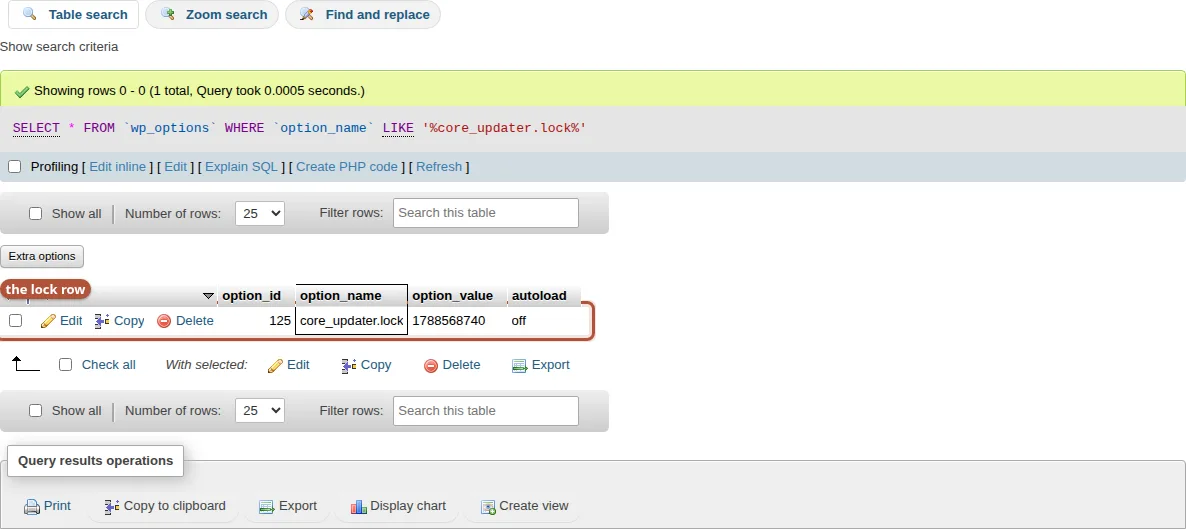
option_value.Searching beats scrolling here. The options table on a working site routinely holds hundreds of rows, and the lock is a single one among them. If the search comes back empty and WordPress is still refusing to update, that is a different fault, and the section called “No Lock Row, Same Error” below is the one you want.
One thing not to bother with: older guides tell you to filter on autoload = 'no'. WordPress 6.6 expanded that column beyond yes and no to include on, off, auto, auto-on and auto-off, and the lock row is written with off, so that filter will not find it. Search on option_name instead.
Read the timestamp before you delete it
The option_value column holds a Unix timestamp, which is a plain count of seconds and not much use to read directly. Let the database do the arithmetic for you. Open the SQL tab and run:
SELECT option_name, option_value, UNIX_TIMESTAMP() - option_value AS seconds_ago
FROM wp_options
WHERE option_name = 'core_updater.lock';
One caveat on that arithmetic: UNIX_TIMESTAMP() is the database server’s clock, while WordPress decides whether the lock has expired using PHP’s clock on the web server. On ordinary shared hosting those are the same machine and the number is exact. If your database runs on a separate server, treat the figure as approximate, off by however far the two clocks have drifted apart.
That seconds_ago figure tells you which situation you are in. Anything above 900 means the lock has already expired and WordPress will clear it the next time you try, so you can simply retry the update. Anything under 900 means you are inside the window and waiting out the remainder is the safest move. A negative number is the interesting case, and the next section is about it.
Delete the row
Once you have a current backup and you are satisfied no update is genuinely running, delete it. Either tick the row in the search results and use Delete, or run:
DELETE FROM wp_options WHERE option_name = 'core_updater.lock';Then go back to Dashboard › Updates and try again. If you are new to working directly in this table, the walkthrough in find and replace URLs in the WordPress database covers the same ground more slowly.
Find and Clear the Lock With WP-CLI
If your host gives you SSH, this is two commands. WP-CLI has to be run from inside the WordPress installation, so change into it first, or every command below answers with This does not seem to be a WordPress installation:
cd /path/to/your/wordpress-installThen read the value:
wp option get core_updater.lockThen remove it:
wp option delete core_updater.lockSuccess: Deleted 'core_updater.lock' option.WP-CLI’s own documentation for wp core update names this error and this remedy, with the caveat that matters: check that another update is not genuinely running before you delete the lock. On a busy multi-author site that is a real possibility.
Worth knowing before you reach for it: WP-CLI is not a way around the lock. wp core update goes through the same core upgrader as the dashboard button and hits the same check, so it reports the same error.
The Lock Dated in the Future
This is the first of the two cases where waiting out fifteen minutes does not help. It is also the easier of the two to check.
WordPress decides whether an existing lock is still valid with a single comparison, in wp-admin/includes/class-wp-upgrader.php:
if ( $lock_result > ( time() - $release_timeout ) ) {
    return false;
}
$lock_result is the timestamp stored in the row, and the lock counts as valid for as long as that timestamp stays greater than the current time minus fifteen minutes. Read that with a value from the future in it. The fifteen minutes is not measured from when you found the row; it is measured from the moment the row claims the update started. So a lock stamped an hour ahead of the server clock blocks for an hour and a quarter, and one stamped a day ahead blocks for a day. A badly wrong clock, or a database moved between machines years apart, can put that moment far enough out that waiting stops being a real option.
A future timestamp gets there in ordinary ways: a server whose clock was wrong when the update started, a database restored from a snapshot taken while a machine’s clock was running fast, or a migration that copied the row across from a host with the wrong time. The stored value is a Unix timestamp, which counts from a fixed moment and carries no timezone, so a timezone setting alone will never put it in the future. Only an incorrect clock does that.
The seconds_ago query above is the test. A negative number means the lock is dated in the future, and its size tells you the wait: the row clears roughly that many seconds from now, plus the usual fifteen minutes. Unless that comes to something you are willing to sit through, delete the row.
No Lock Row, Same Error
This is the version that fills the support forums. You search the options table, there is no core_updater.lock anywhere, and WordPress still refuses to update.
The explanation is in what the message actually means. It does not only mean a lock exists. It means I could not take the lock. WordPress creates the row with an INSERT IGNORE statement, which quietly downgrades errors to warnings and inserts nothing at all. If that insert fails and there is no existing lock to fall back on, WordPress gives up and returns the same message, with nothing in your database to find or delete.
The usual reason the insert fails is the options table itself. WordPress creates option_id as a bigint AUTO_INCREMENT primary key, and some one-click installers, database imports and table repairs lose that attribute. Nothing appears to be wrong until something tries to add a new option, which is why the site can run for months and then fail only at update time.
It is worth being precise about when it starts biting, because the behaviour looks erratic. With AUTO_INCREMENT gone, the very first insert still succeeds: MySQL supplies the column’s implicit default and the row lands on option_id 0. Every insert after that collides with it:
Error: Query failed: ERROR 1062 (23000) at line 1: Duplicate entry '0' for key 'wp_options.PRIMARY'To check your own table, run this in the SQL tab and look at the EXTRA column:
SELECT COLUMN_NAME, COLUMN_TYPE, EXTRA
FROM information_schema.COLUMNS
WHERE TABLE_SCHEMA = DATABASE()
  AND TABLE_NAME = 'wp_options'
  AND COLUMN_NAME = 'option_id';
A healthy install returns auto_increment there. An empty EXTRA is your answer, and it explains everything: the missing lock row, the error that will not clear, and why deleting things at random never helped.
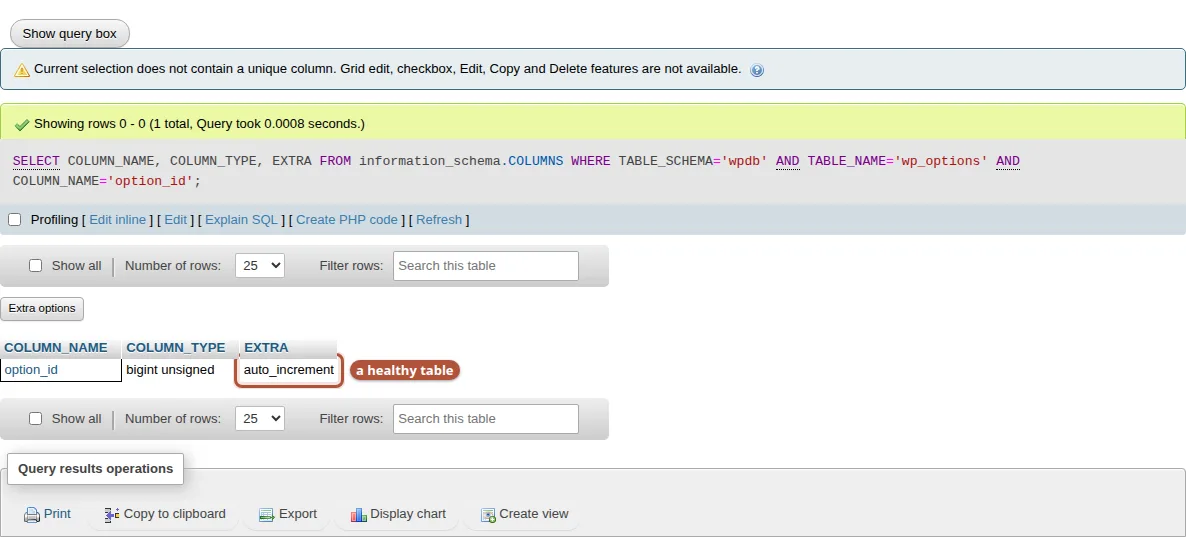
EXTRA column is empty here, that is the fault, and no amount of deleting rows will fix it.Repairing it takes two statements, and the order matters. Restoring AUTO_INCREMENT first looks like the obvious move and does not work: MySQL replies that ALTER TABLE causes auto_increment resequencing. Renumbering turns that zero into a one, and there is already a row holding one, so it collides there.
Error: Query failed: ERROR 1062 (23000) at line 1: ALTER TABLE causes auto_increment resequencing, resulting in duplicate entry '1' for key 'wp_options.PRIMARY'So move that row out of the way first, then restore the attribute:
UPDATE wp_options
SET option_id = (SELECT MAX(o.option_id) + 1 FROM (SELECT option_id FROM wp_options) o)
WHERE option_id = 0;

ALTER TABLE wp_options MODIFY option_id BIGINT(20) UNSIGNED NOT NULL AUTO_INCREMENT;
One more thing can go wrong here. An AUTO_INCREMENT column has to be a key, so if the primary key was lost along with the attribute, that second statement refuses too, this time with there can be only one auto column and it must be defined as a key. Put the key back between the two statements above:
ALTER TABLE wp_options ADD PRIMARY KEY (option_id);Run it after the UPDATE that moves the zero row and before the AUTO_INCREMENT change, or it collides with that row on the way in.
Finish the Update and Confirm It Worked
With the lock gone, go back to Dashboard › Updates and start the update again. On the command line it is wp core update, which reports Success: WordPress updated successfully. when it is done.
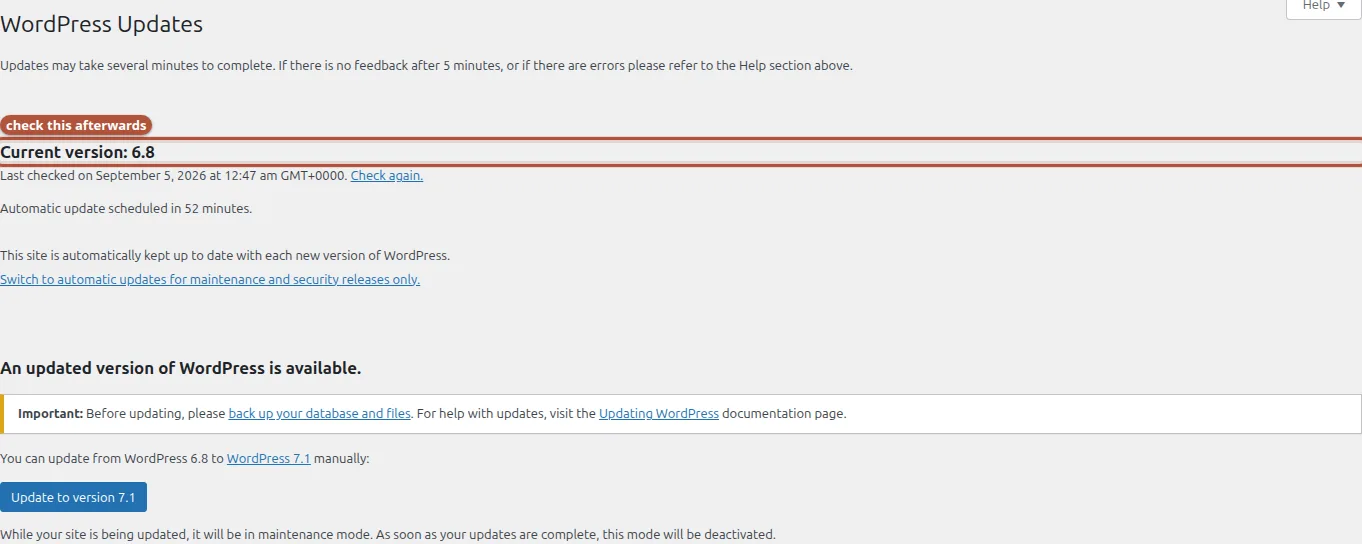
If the update fails the same way a second time, stop clearing locks and update WordPress by hand instead. The documented procedure on wordpress.org is more than swapping two folders: back up first, delete the old wp-admin and wp-includes directories rather than merging into them, upload the new ones, copy the individual files from the release’s wp-content into your existing wp-content without deleting it, copy the loose files from the release root over your own, and then load /wp-admin so WordPress can run any database upgrade it needs. Your themes, plugins and uploads stay where they are, and so does wp-config.php. While you are in there, delete any leftover .maintenance file in the site root, which is a separate remnant of an interrupted update.
Afterwards, check the version rather than assuming. Dashboard › Updates states the version you are on at the top of the page. If WordPress sends you to a database upgrade screen and then loops back to it, that is a different problem with its own fix, covered in the database is already up to date loop.
Stop It Happening Again
The lock is a symptom rather than the disease. Something interrupted a core update, and the row is just the evidence it left behind. A few habits make it much rarer:
- Start an update and leave the tab open until it finishes. Closing it mid-update is the single most common way to strand the lock.
- Leave automatic updates on for minor releases. They run in the background on their own lock and are far less likely to be interrupted than a human clicking a button and wandering off.
- Back up before major updates, not after. A backup you took yesterday is worth more than any recovery article.
- If updates keep dying part-way, treat it as a resource problem rather than a lock problem. Repeated interruptions usually mean PHP is hitting a time or memory limit, and your host can tell you which.
One piece of common advice to be careful with: clearing your caches will not remove this lock. It is an ordinary row in the database rather than a transient, so a page cache purge or an object cache flush leaves the row exactly where it was. Clearing the WordPress cache is a useful habit for other reasons, and worth doing after you delete the row by hand, but it is not what clears the lock.
Wrapping Up
Almost every time, this error means what it says: an update really was interrupted, the marker is still there, and fifteen minutes or one deleted row puts it right. That is the ordinary case and it is genuinely as small as it looks.
The two exceptions are worth remembering, because they are the ones that cost people days. A timestamp dated in the future does not clear fifteen minutes after you find it; it clears fifteen minutes after the moment it claims to have started, which may be a long way off. And when there is no lock row at all, WordPress is telling you it could not create one, which points at the options table rather than at the update. Check option_id before you spend another evening deleting rows that were never there.


Comments